The Widget Was Empty
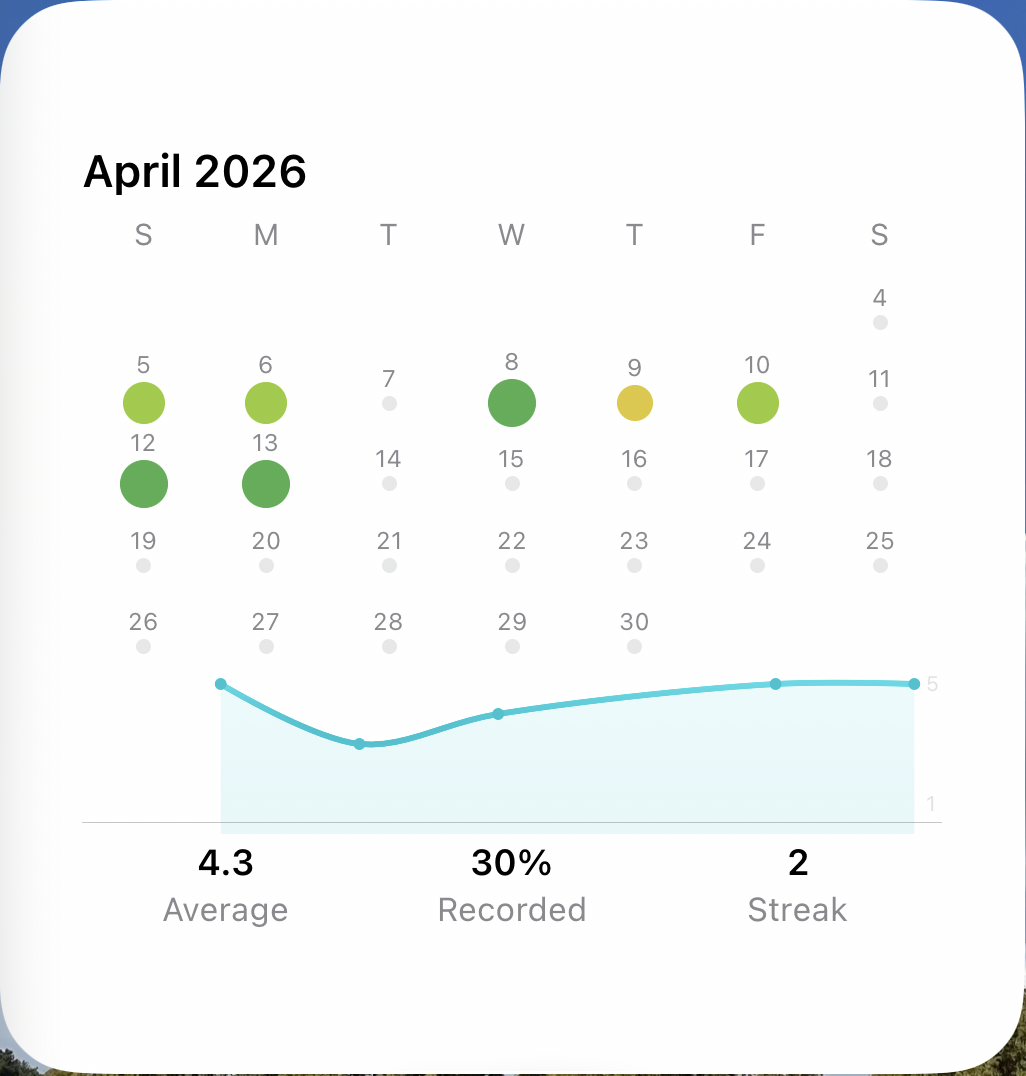
JournalMind syncs journal data with SwiftData + CloudKit. When I added a home screen widget to show today’s mood and weekly graph, the widget was always blank — even though the app itself showed data just fine.
The Cause: Separate Processes
A WidgetKit extension runs in a separate process from the main app. Even if you create the same ModelContainer, CloudKit sync only happens in the main app’s process.
The widget process can open the local SQLite file, but two things get in the way:
- WAL caching: Data written by the main app may still be in the WAL file, not yet checkpointed to the main database. The widget reads stale data.
- CloudKit sync timing: There’s no guarantee the widget process will trigger a CloudKit sync when it wakes up.
I initially assumed sharing the same ModelContainer would work. It didn’t.
The Fix: App Group File Bridge
The solution was simple in concept: the main app serializes widget data to a JSON file in the App Group container, and the widget reads that file instead.
enum WidgetDataBridge {
    private static var bridgeFileURL: URL {
        FileManager.default
            .containerURL(forSecurityApplicationGroupIdentifier: "group.com.example.app")!
            .appending(path: "widget-bridge.json")
    }

    static func save(_ entry: CachedEntry) {
        guard let data = try? JSONEncoder().encode(entry) else { return }
        try? data.write(to: bridgeFileURL, options: .atomic)
    }

    static func load() -> CachedEntry? {
        guard let data = try? Data(contentsOf: bridgeFileURL) else { return nil }
        return try? JSONDecoder().decode(CachedEntry.self, from: data)
    }
}
Whenever data changes in the main app, it calls WidgetDataBridge.refreshFromContext(context) to serialize the latest state, then WidgetCenter.shared.reloadTimelines(ofKind:) to trigger a widget refresh.
On the widget side, the TimelineProvider checks the bridge file first, falling back to SwiftData only if the cache is missing:
static func loadFromBridgeOrFetch(from context: ModelContext) -> JournalWidgetEntry {
    if let cached = WidgetDataBridge.load(),
       Calendar.current.isDateInToday(cached.date) {
        return JournalWidgetEntry(from: cached)
    }
    return fetchCurrentEntry(from: context)
}
The key detail is the date check — once midnight passes, yesterday’s cache is ignored. The widget retries every 60 seconds until the app opens and writes fresh data.
Second Problem: iCloud Sync Creates Duplicates
With the widget working, another issue surfaced: duplicate entries for the same date.
Record a mood on iPhone, open the app on iPad, and CloudKit sync creates two entries for the same day. SwiftData + CloudKit does server-side merging, but CloudKit doesn’t support unique constraints — it can’t know that two entries with the same date should be one record.
Why Simple Deletion Fails
The naive approach — “if dates match, delete the newer one” — is dangerous. What if the iPhone entry has photos and the iPad entry has text? Deleting either one loses data.
Merge by Richness Score
Instead, each entry gets a richness score based on how much data it contains:
@Transient var richnessScore: Int {
    photoDataArray.count * 10 + (hasText ? 5 : 0) + activityTagIDs.count
}
Photos are worth 10 points, text 5, each tag 1. The richest entry becomes the “keeper,” and missing fields are merged in from the others:
static func mergeDeduplicates(in context: ModelContext) {
    let grouped = Dictionary(grouping: allEntries) { entry in
        calendar.startOfDay(for: entry.date)
    }

    for (_, entries) in grouped where entries.count > 1 {
        let sorted = entries.sorted { a, b in
            if a.richnessScore != b.richnessScore { return a.richnessScore > b.richnessScore }
            return a.updatedAt > b.updatedAt
        }

        let keeper = sorted[0]
        for other in sorted.dropFirst() {
            if !keeper.hasText, other.hasText { keeper.text = other.text }
            if keeper.photoDataArray.isEmpty { keeper.photoDataArray = other.photoDataArray }
            keeper.activityTagIDs = Array(Set(keeper.activityTagIDs + other.activityTagIDs))
            context.delete(other)
        }
    }
}
This runs automatically on app launch and after each iCloud sync completes.
Takeaway
If you’re using WidgetKit with CloudKit, don’t try to share SwiftData directly — design an App Group file bridge from the start. And if you use iCloud sync, a duplicate merge strategy isn’t optional. Simple deletion is the fastest way to lose your users’ data.
The app discussed in this post is JournalMind — a mood journaling app that tracks your daily emotions and finds patterns over time.